
iPhone Duo App Compatibility: A Real App, Folded and Open
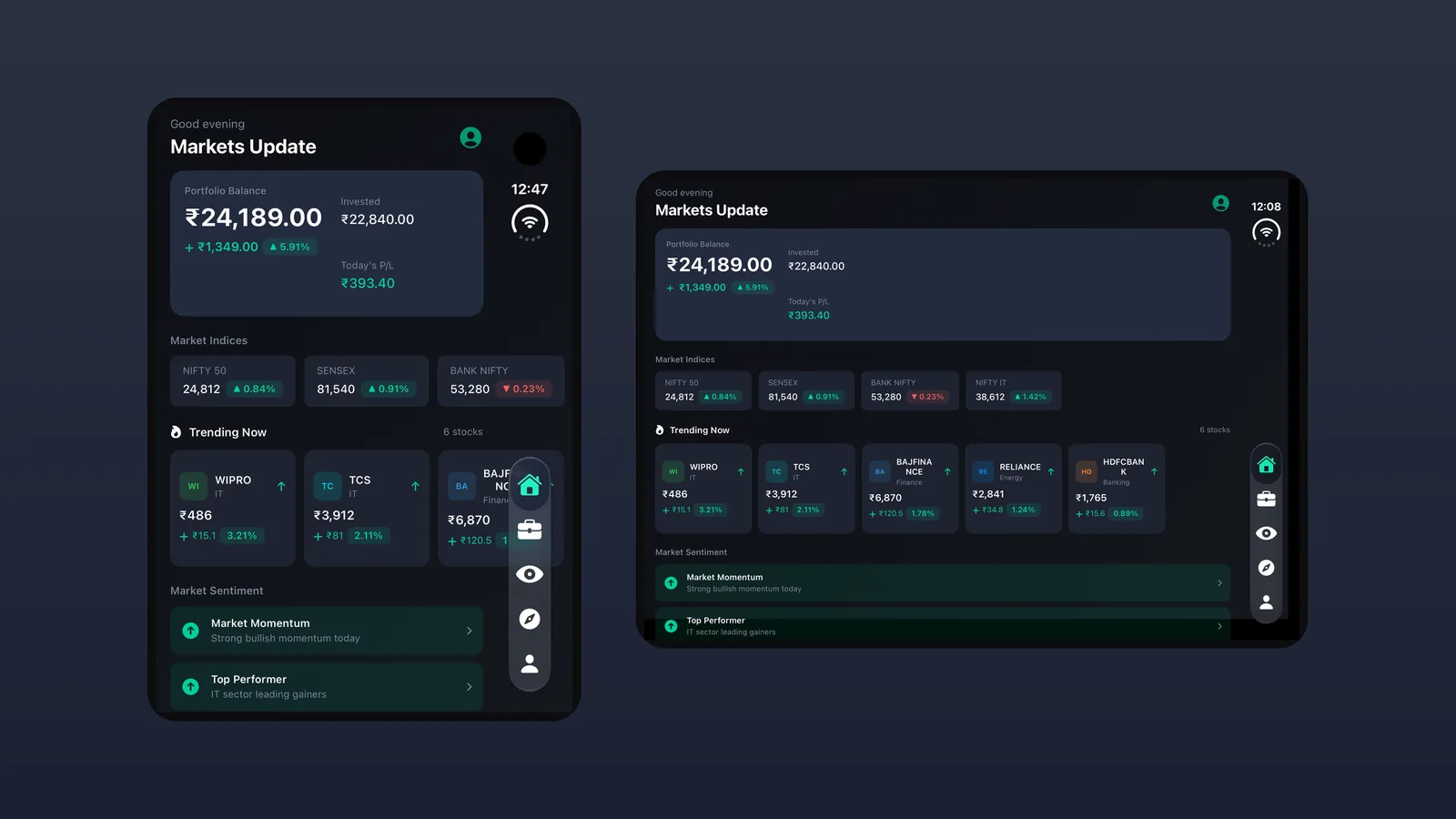
iPhone Duo goes on sale on October 23, and preorders opened on October 16. If you have an iOS app, it will run on the Duo from day one. But how it looks depends on one thing: the iOS SDK your app was last built with. Some apps will fill the large foldable display. Others will sit in a small box surrounded by black.
This post explains how Apple decides which one your app gets, how to check where your app stands today, and what a properly updated app looks like. For that we use real screenshots of a stock-trading app we took through the update, in every way people will hold the device.
How iPhone Duo decides how your app looks
In its iPhone Duo developer tech talk, Apple described three levels of support. Which one your app gets depends on the SDK it was built against (9to5Mac summary):
- Built for iOS 26 or earlier: compatibility mode. The app runs as a single phone-sized view inside a safe area, and the rest of the screen is filled with black. It works, but it looks like an app from another device.
- Rebuilt for iOS 27.0: partial support. The app uses much more of the display, but some empty space remains.
- Built for iOS 27.1: full support. The app can use the entire foldable display. This is what Apple's own apps do, and what users will compare yours with.
Nothing crashes. The real risk is that your app looks unfinished next to apps that were updated, on a device bought by exactly the early, high-value users most apps want.
Quick check: where does your app stand?
- When was your last App Store build? If it was built before Xcode 27.1, it won't get full-screen support on the Duo.
- Do you have fixed widths or locked orientation? Rebuilding with the new SDK doesn't fix those. They have to be changed in the code.
- Have you looked at it in each posture? Folded, open, half-folded, and open in portrait are four different canvases. Check each one.
Real example: a stock-trading app on iPhone Duo
A trading app is a tough test. It has dense numbers, charts, long company names, filters, and an order flow that must stay correct. Below is the same app in the four postures we tested. The data shown is test data.
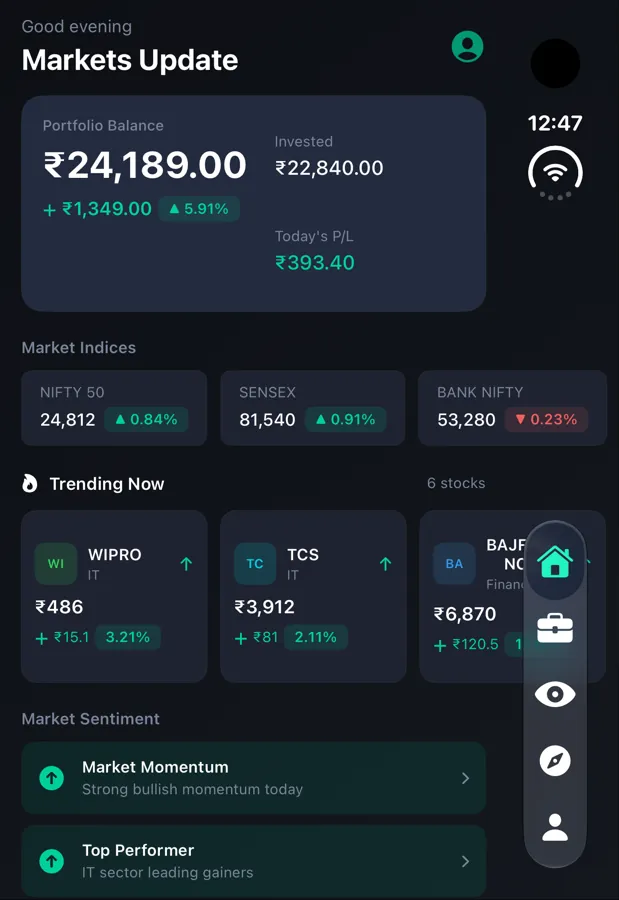
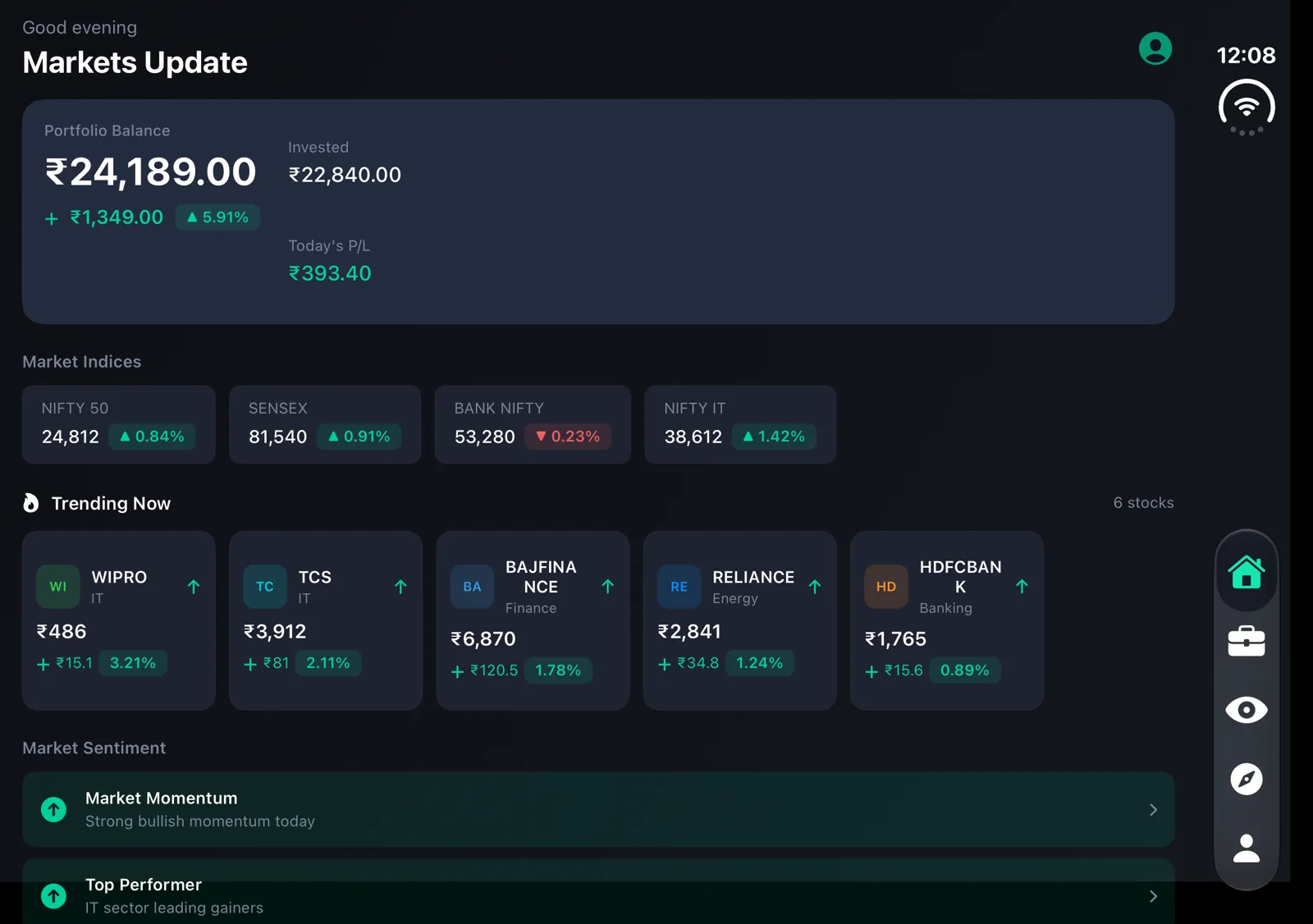
1. Folded vs open: the home screen
Folded, the app is a focused phone experience. When you open the device, the layout reorganises to show more instead of just stretching. The trending-stocks row goes from about two cards to five. A fourth market index (NIFTY IT) appears. Portfolio balance, invested amount and today's P&L sit together in one summary card.
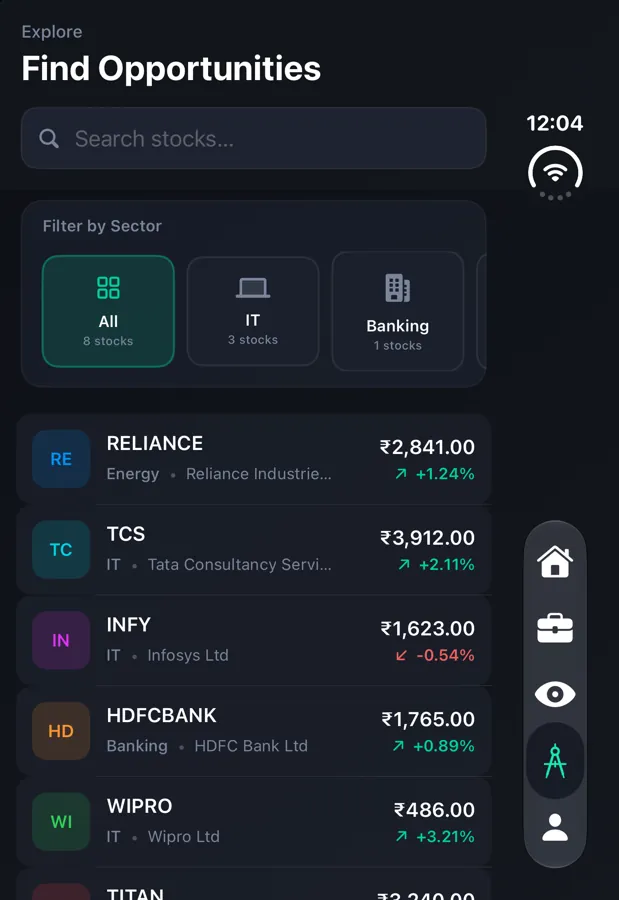
2. Folded vs open: search and filters
This is where an app that only stretches gets caught out. Folded, the sector filter shows three chips, and the rest scroll sideways. Opened, all seven sectors (All, IT, Banking, Energy, Finance, Auto, Consumer) are visible at once. Long company names that were cut short ("Reliance Industrie…") now show in full ("Reliance Industries Ltd").
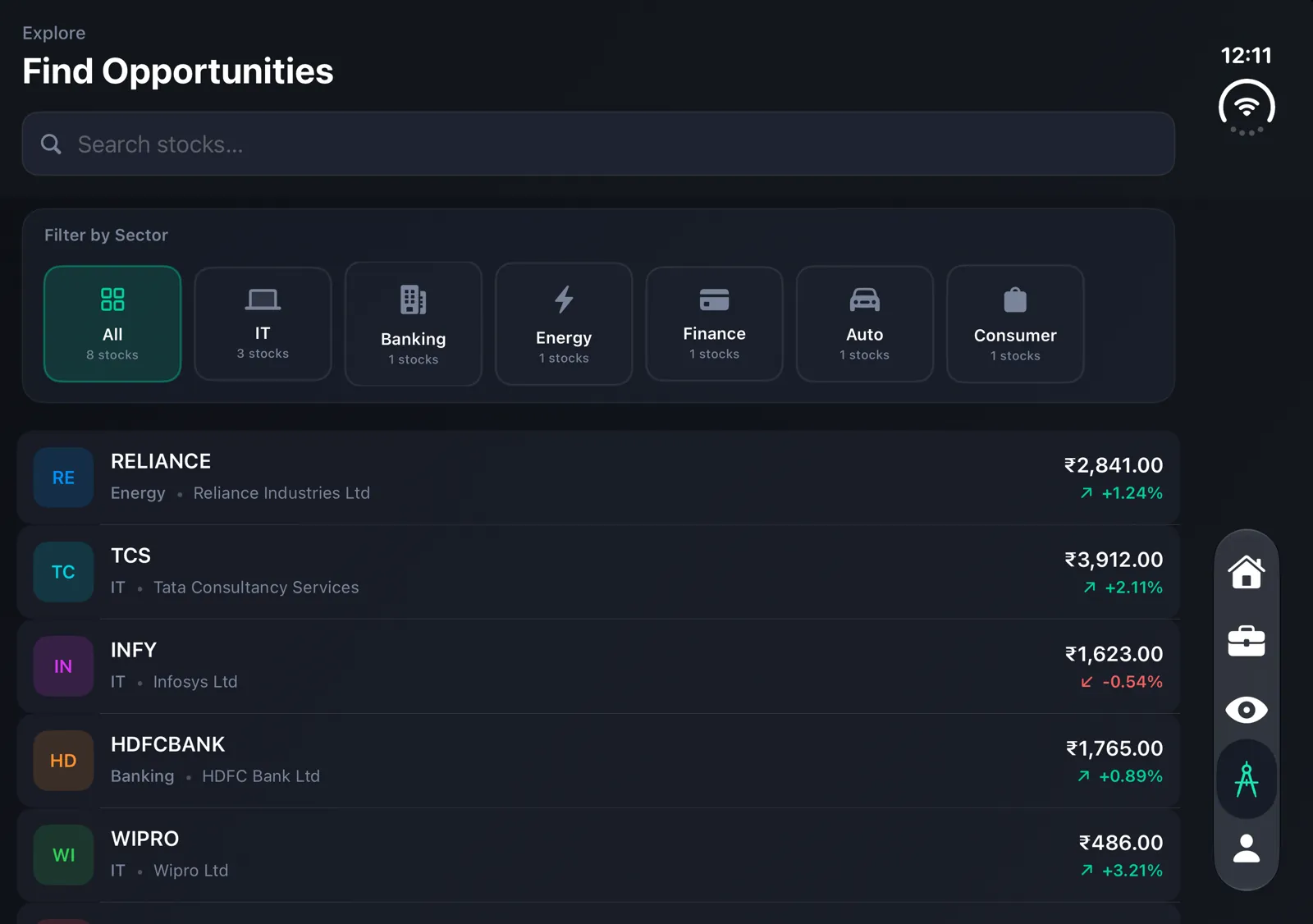
3. Half-folded
People will prop the Duo up partly folded, like a small laptop, to watch the market. In that position the app keeps its full-screen layout. Portfolio statistics and holdings stay readable and the navigation stays within reach.
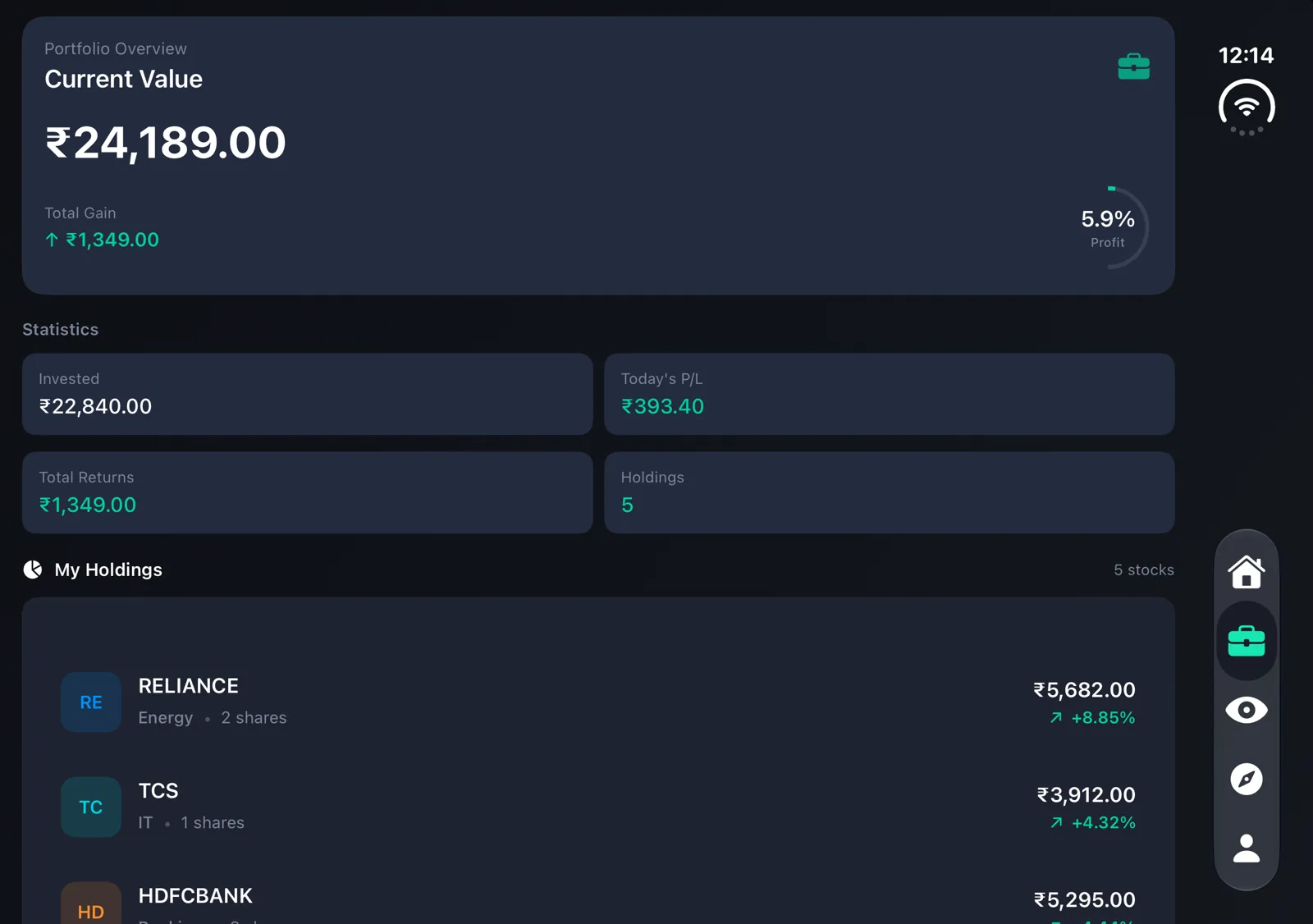
4. Open in portrait
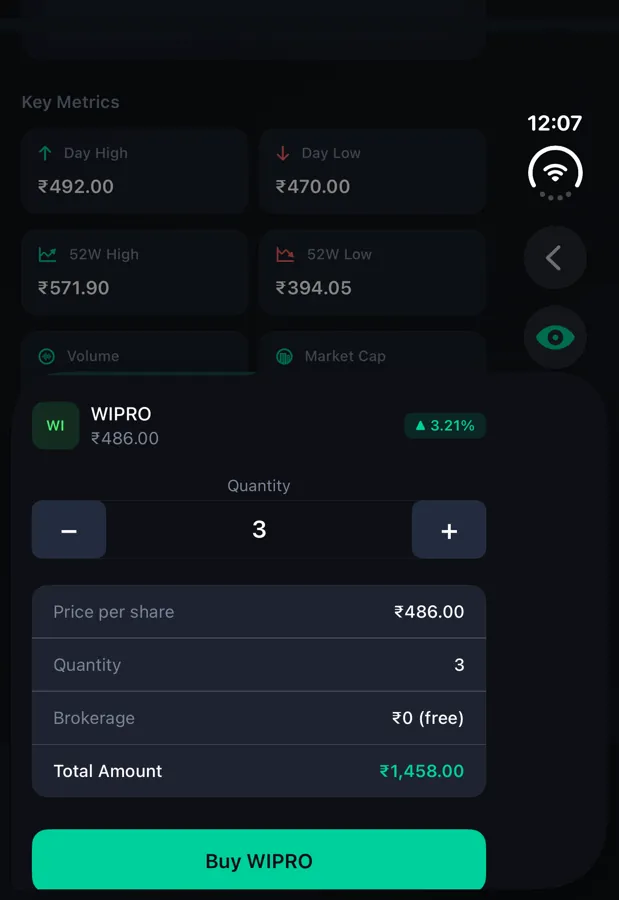
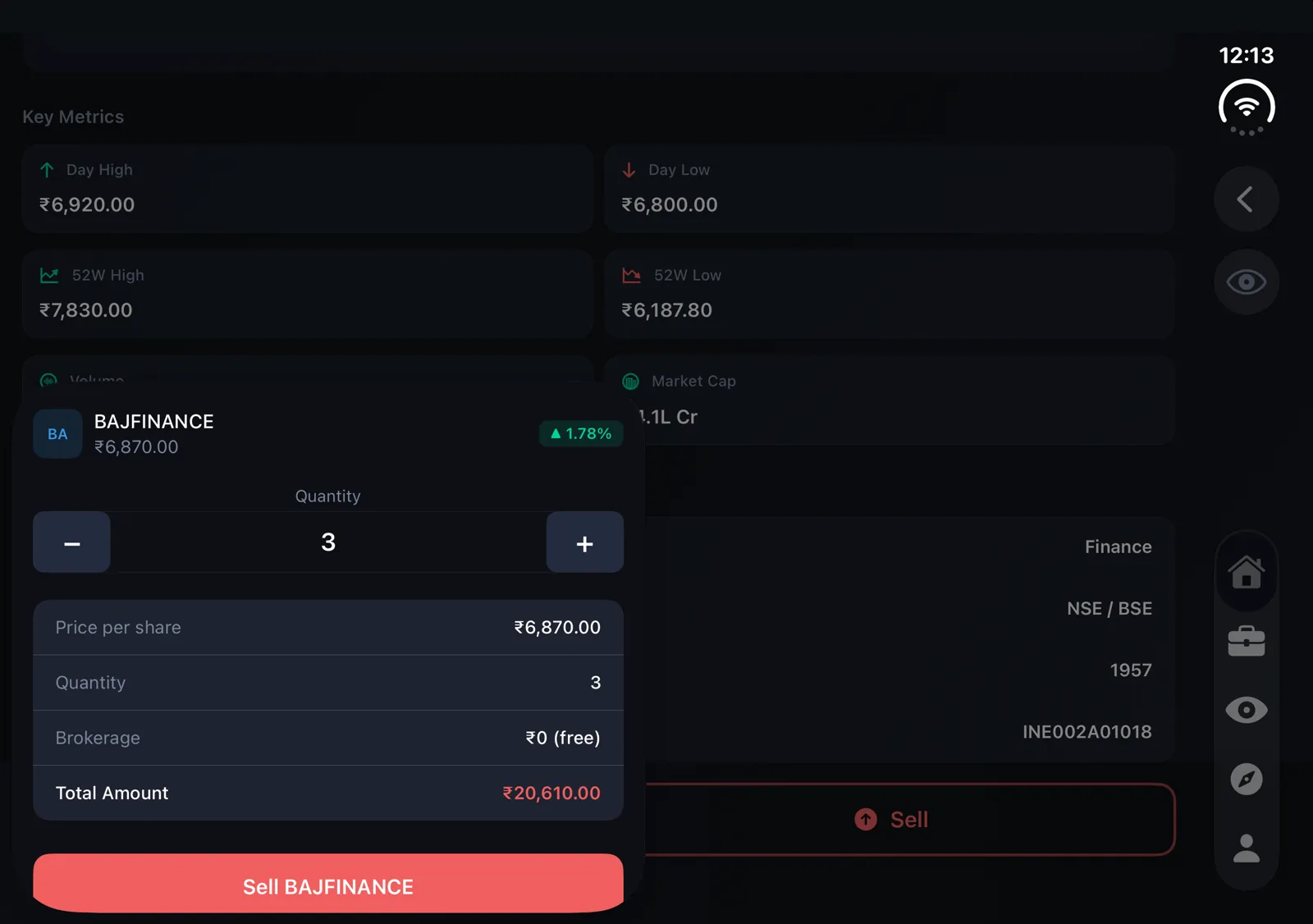
Turn the open device upright and the app changes its navigation pattern, not just its width. The side rail becomes a floating tab bar with labels (Home, Portfolio, Watchlist, Explore, Profile) at the bottom. Placing an order becomes a bottom sheet with a Buy/Sell switch, so the order details stay visible above it.
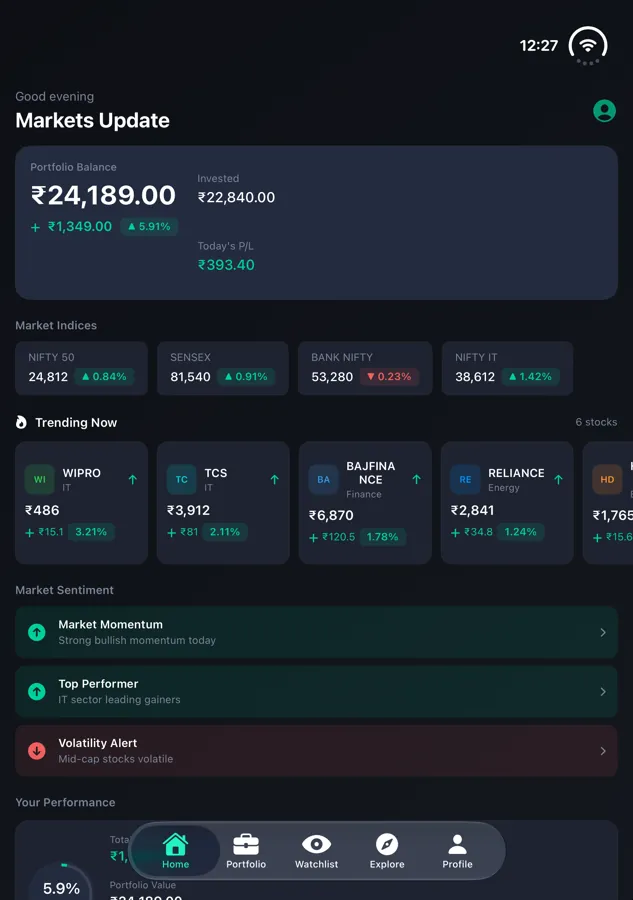
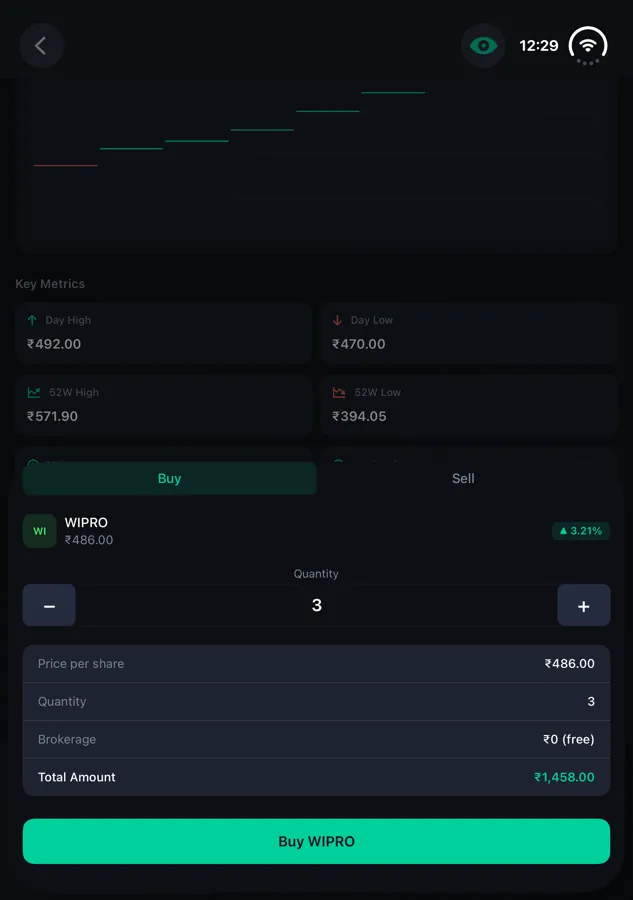
5. The order flow stays the same everywhere
Layouts can change, but money flows can't. In every posture the order sheet shows the same steps in the same order: stock, quantity, price per share, brokerage, total amount, then confirm. A user who learned the flow folded never has to relearn it open.
What makes an app work on iPhone Duo
The screenshots above follow a few engineering principles. They apply whether your app is in Swift, SwiftUI, UIKit, Flutter or React Native:
- Build against the iOS 27.1 SDK. Without it, nothing else matters, because the app stays in compatibility mode.
- Base layout on available space, not on device model. Use size classes and flexible containers, not fixed frames.
- Change the navigation pattern with the screen. Use a rail or sidebar when the screen is wide and a tab bar when it is tall. Don't stretch one pattern everywhere.
- Use extra space for more content. Show more cards, more filters and full labels, rather than larger fonts and padding.
- Keep critical flows identical. Checkout, payments and orders should look different on each screen but follow the same steps.
- Test every posture and every transition. That means folded, open, half-folded and portrait, and moving between them mid-task.
Your iPhone Duo compatibility checklist
- Your latest build uses Xcode 27.1 or newer, so the app gets full-display support.
- There are no hard-coded widths or orientation locks on key screens.
- Navigation adapts between compact and wide layouts.
- Lists, filters and long text use the extra width.
- Sheets and forms make sense in every posture.
- Charts, images and video look sharp on the large display.
- Accessibility checks (Dynamic Type, VoiceOver, touch targets) are re-run in each state.
- App Store screenshots show the app on the unfolded display.
For the full background on layouts, multitasking and testing, read our guide: Is your app ready for iPhone Duo?
Get your app Duo-ready with Blueshark Labs
You don't need a rebuild. We take the iOS app you already have, move it to the current SDK, adapt the layouts for folded, open and half-folded use, test every posture, and take the update through TestFlight to the App Store. We work in Swift, SwiftUI, UIKit, Flutter and React Native.
Send us your App Store link and we'll tell you which compatibility level your app is in today and what it will take to reach full support. Book a free Duo readiness audit, or see the iPhone Duo app upgrade offer.
More from the blog
Is Your App Ready for iPhone Duo? A Practical Guide for App Owners
Apple has introduced the foldable iPhone Duo — a device that unfolds into a much larger display and enables device-specific experiences. For app owners, this is the biggest layout shift since the iPad and the notch combined. The…
Read article
Production-Ready App Checklist
Whether you built your app by hand or with AI tools, "ready to launch" means the same thing: it's secure, reliable, fast and maintainable under real-world use. It's easy to feel ready when the happy path works — but production is…
Read article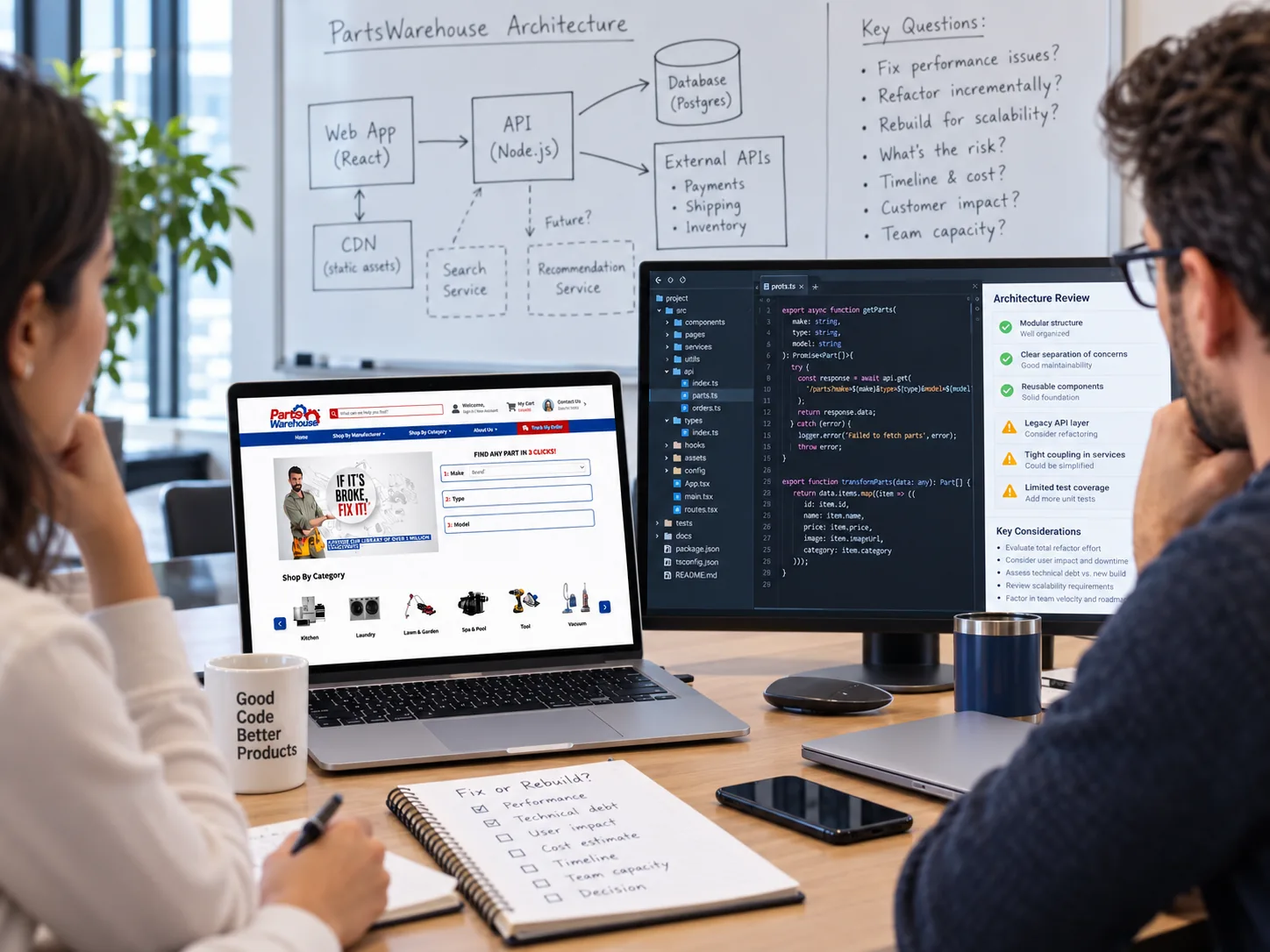
Should You Fix Your AI-Generated App or Rebuild It?
You built an app with AI, users like it, and now it's straining. The code is hard to change, bugs keep resurfacing, and every new feature feels risky. You're facing the question every growing product eventually asks: do we fix…
Read article
Let's Talk
Drop an inquiry to get connected and drive the innovations for your dynamic mobile app ideas.

